RoughAnimator - animation app
- 4.5
- Rating
- 50.00K
- Installs
- $7.99
- Price
 Analysis by App-foxy
I approached RoughAnimator as someone who wanted to make a short hand-drawn animation without first learning a complicated production suite. That turned out to be the right way to use it. This is a focused Art & Design app from WeirdHat, built around drawing frame by frame rather than arranging ready-made motion effects. Its appeal is immediate: you sketch, add another drawing, scrub through the timeline, and gradually see movement take shape.
The first impression is more practical than polished. It feels like a compact animation workspace rather than a social drawing app or a collection of templates. That matters because the software expects you to participate in the process. You are not choosing an automated transition and calling it animation; you are deciding how a character moves, how long a pose holds, and where a drawing needs correction.
At $7.99, it is a paid app, so the decision is different from downloading a free sketching tool for casual doodles. I think the price makes most sense for people who specifically want traditional, frame-by-frame work on a mobile device or tablet. If your goal is only to add stickers, filters, or quick motion to photos, this is the wrong kind of tool.
You May Also Like

 Blood Strike: 2.5 Anniversary
Blood Strike’s Loadouts Turn Every Drop Into a Tactical Gamble
A close look at Blood Strike’s custom loadouts: how fast access to signature weapons reshapes its battle royale rhythm, rewards preparation, and narrows the gap between fights.

 Pandora - Music & Podcasts
Pandora’s Music Is Easy to Start, but Harder to Recover
Pandora’s strength is its low-effort path from a seed to a station. Its weak spot is how much confidence it asks you to place in connection, setup, and quiet recovery.

 8 Ball Pool
8 Ball Pool Is Built on Rivalries, Rematches, and Routine
A close look at the rivalries, rematches, shared routines, and unanswered safety questions that turn a quick pool match into a persistent mobile community.

 Samsung Music
Samsung Music’s Quiet Strength Is Playing What You Already Own
Its reach comes less from spectacle than from dependable access to a personal library. That simplicity is both the app’s strongest retention engine and its ceiling.

 AccuWeather: Weather Radar
AccuWeather Review: A Quick, Clear Forecast for Everyday Decisions
For everyday plans, the best forecast is the one you can understand quickly. AccuWeather makes rain timing, radar, and local conditions easy to act on, with a few trade-offs.

 Hill Climb Racing
Why Hill Climb Racing Still Turns Crashes Into One More Run
A tiny car, a bumpy hill and one more upgrade: Hill Climb Racing keeps resurfacing because its simple chaos makes every near-miss feel personal.
More From Our News Desk



What the first session feels like
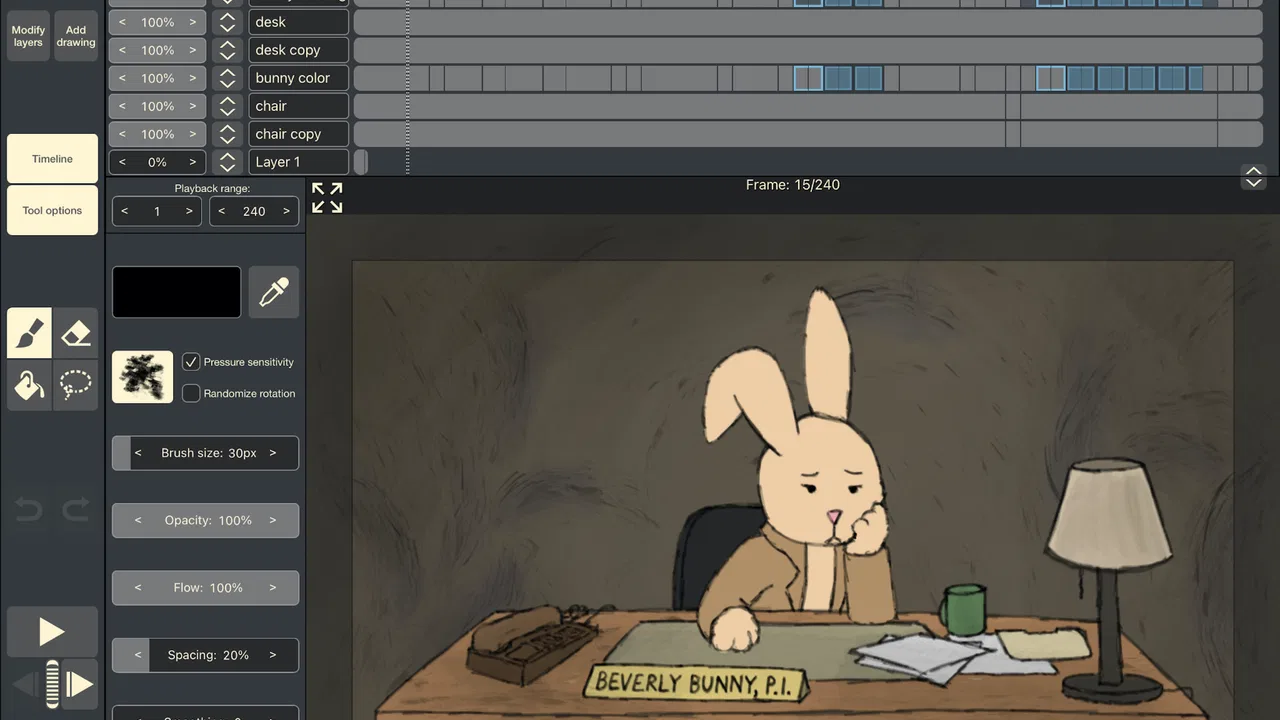
The app’s store summary promises everything needed for hand-drawn animation on the move, and my experience is that its strength lies in keeping the central workflow close at hand. The important relationship is between the canvas and the timeline. A drawing is not finished in isolation; it is one moment inside a sequence. Once that idea clicks, the interface becomes much less intimidating.
RoughAnimator is currently at version 4.25 and supports operating system version 10 or later. That makes checking device compatibility an important first step, especially if you are installing it on an older phone or tablet. The content rating is Everyone, so the app is presented as suitable for a broad audience, although the creative work itself is better suited to users who are comfortable with drawing tools and a little visual patience.
The public response is encouraging without being a reason to skip your own evaluation. It holds an average rating of 4.5 from around 3.5 thousand ratings, with more than 800 written reviews, and it has passed 50 thousand installs. I read those figures as evidence of a committed audience rather than proof that every beginner will find the interface effortless.
What you should expect is a learning curve tied to animation thinking, not just button placement. A still-image drawing app can feel forgiving because one canvas is the finished result. Here, a weak drawing may be hidden by the previous and following frames, or it may become painfully obvious when the sequence plays. That extra responsibility is also the reason the app can produce more personal results than automatic animation tools.
Setting up a project without overthinking it
For a first attempt, I recommend starting with a tiny action: a bouncing ball, a blinking eye, or a character turning its head. Do not begin with a dialogue scene or a detailed background. The goal is to understand the loop between creating a frame, moving to the next one, and previewing the result.
Before drawing, decide what the action needs to communicate. A bouncing ball needs a clear contact point, a squash near the ground, a stretch during the fastest part of the movement, and a pause at the top. You do not need a long sequence to learn this. In fact, a short test makes mistakes easier to identify and correct.
I also found it useful to separate the rough planning from the final drawing. Start with loose marks and concentrate on the path of the action. Once the timing feels believable, clean up only the frames that matter most. This avoids a common beginner trap: spending a long time polishing a single pose before discovering that the overall motion feels stiff.
When working on a small screen, keep the drawing simple and zoom in only when precision matters. Constantly zooming and panning can interrupt the rhythm of animation, while trying to draw tiny details at the full view can make lines hesitant. A tablet or stylus can make the experience more comfortable, but the important advantage is control over the drawing process, not expensive equipment.
The first meaningful success
Your first real success should be judged by motion, not by artistic quality. Make a short scene in which an object clearly changes position, then play it repeatedly. If the action reads even when the drawings are rough, you have learned the essential idea behind the app.
One practical method is to create the starting pose, the ending pose, and one deliberately exaggerated middle pose. Play those frames before adding more. If the movement already communicates an idea, add drawings between them to smooth the action. If it does not, more frames will only make the confusion last longer. This pose-first approach is one of the most useful habits I would bring to RoughAnimator.
Another helpful habit is to duplicate the visual logic of traditional animation: strong key poses first, connecting drawings afterward. Even if you are making a simple walk or gesture, identify the moments that carry the action. The app becomes easier to manage when every frame has a job instead of serving as another place to add detail.
For an everyday scenario, imagine waiting for a train with a few minutes to spare. You could sketch a small character lifting a hand, make the first and last positions clear, and use the remaining time to add the in-between drawings. That kind of exercise plays to the app’s portable nature. You are not trying to complete a polished film in one sitting; you are building a visual idea in a place where a notebook might otherwise be more convenient.
Why the timeline deserves your attention
The timeline is where this app differs most from ordinary drawing software. It asks you to think about duration and order. A drawing that looks excellent may still feel wrong if it appears too briefly, while a simple pose can become expressive when held at the right moment.
When a scene feels too fast, do not immediately redraw everything. First inspect the spacing and the amount of time given to important poses. A held expression can make a reaction understandable. A shorter transition can make a gesture feel energetic. This is a subtle trade-off: adding frames can smooth motion, but it can also remove the punch from an action.
I recommend playing the sequence often at its intended rhythm instead of judging every drawing separately. Frame-by-frame inspection is valuable for finding stray marks and awkward proportions, but animation is ultimately experienced over time. A frame that seems unfinished on its own may work perfectly as a passing image.
For a character, rough construction lines can also be more useful than detailed outlines during planning. Establish the head, spine, shoulders, and direction of movement before worrying about clothing or facial detail. This gives you a way to compare poses and makes inconsistencies easier to spot. It is a workflow insight that is easy to miss if you approach the app only as a digital sketchbook.
Confusion points that can slow a beginner
The biggest source of friction is the difference between drawing and animating. If you are used to making one illustration at a time, the idea of managing many related drawings can feel repetitive. That repetition is not a flaw in the app; it is the medium. Still, it means you should begin with an action small enough to finish.
Another common mistake is trying to make every frame equally detailed. That approach consumes energy without necessarily improving the result. RoughAnimator is more rewarding when you allow early frames to be rough, use playback to find the important moments, and reserve cleanup for drawings that remain visible or define the movement.
Beginners may also wonder why a sequence looks shaky even when each drawing seems acceptable. Usually the problem is not a single bad line but inconsistent placement from frame to frame. Compare the position of the main body mass or the character’s center rather than only checking the outline. Keeping a stable visual anchor helps the motion feel intentional.
It is also easy to confuse a longer animation with a better animation. A short, readable gesture is a stronger first achievement than an unfinished scene that contains several actions. I would rather complete a compact loop and learn from it than create a long timeline that becomes difficult to revise.
Where it beats ordinary alternatives
Compared with a basic drawing app, RoughAnimator gives the artwork a built-in sense of time. You can explore movement directly instead of exporting separate images and assembling them elsewhere. That makes it a better choice for hand-drawn tests, expressive loops, rough character acting, and animation practice.
Compared with template-driven video editors, it offers more control over the actual drawings but far less instant gratification. A video editor is usually better when you already have photos or clips and want transitions, captions, or music. RoughAnimator is better when the motion itself must come from your sketches.
Compared with automatic motion tools, the trade-off is even clearer. Automation can produce a result quickly, but it may not understand the exact exaggeration or timing you want. Here, the work is slower because you are responsible for the movement. For an animator who wants to learn why an action works, that responsibility is a benefit rather than a burden.
It is not the best fit for someone looking for a full graphic-design package, a photo editor, or a one-tap cartoon generator. I would also hesitate to recommend it to a user who dislikes drawing repeatedly or who wants a finished result without practicing timing. The app can make animation more accessible, but it cannot remove the creative decisions that animation requires.
Practical ways to improve your results
Use contrast in timing. Let a character settle briefly before a sudden movement, or hold the end of a gesture long enough for the viewer to register it. This often improves clarity more than adding decorative detail. When playback feels lifeless, inspect the pauses before changing the artwork.
Keep a rough version before cleaning up. The loose first pass often contains the most energetic poses, and replacing it too early with careful lines can make the action rigid. A safer workflow is to preserve the rough idea, test the motion, and then refine selectively.
Work in passes. First check whether the story or gesture reads. Next check spacing and consistency. Only then spend time on line quality and secondary details. This order prevents you from polishing the wrong solution and is especially valuable on a mobile device, where lengthy edits can become tiring.
For a looping animation, pay attention to the join between the final and first drawings. A loop can feel like it jerks even when the middle is smooth if the opening and closing poses do not connect naturally. Test the loop several times in succession; the repeated transition reveals problems that may be invisible during a single playback.
Finally, treat the portability as a creative advantage rather than a requirement to work everywhere. A short gesture study during a spare moment can become useful reference material later. The app is at its best when it lets you capture and test an idea before it disappears, not when you force yourself to finish a major production on a small screen.
Who should pay for it
I would recommend it to a beginner who specifically wants to learn hand-drawn animation, an illustrator who wants to test movement, or a hobbyist who values working away from a desktop. It also suits people who prefer direct control and are willing to improve through short experiments rather than expecting instant polish.
The paid model makes the most sense if you expect to return to animation more than once. A single weekend of curiosity may not justify the purchase for everyone, especially when free sketching apps can satisfy simple drawing needs. On the other hand, repeatedly exporting drawings to another tool can become frustrating if frame-by-frame work is your real goal.
WeirdHat has kept the app centered on a clear creative task, and that focus is its main advantage. The interface may require patience, but it does not distract from the relationship between drawing, timing, and playback. I prefer that focused friction to a crowded toolset that promises everything and makes the important workflow harder to find.
My recommendation after using it
RoughAnimator is a strong choice when you want to make animation by drawing the movement yourself. Its best qualities appear after the first few minutes, when a sequence begins to respond to your choices about poses, spacing, and pauses. The reward is not merely a moving picture; it is a clearer understanding of how that movement was built.
Go in with a small project, accept rough drawings at the beginning, and judge your progress by whether the action reads. If you want instant effects, automated motion, or a general-purpose art studio, choose a different category of app. If you want a portable workspace for deliberate, hand-drawn animation, the $7.99 purchase is easier to justify.
With an Everyone content rating, broad device availability from operating system version 10 onward, and a current version of 4.25, it is approachable in terms of access, though the craft still takes practice. My final advice is simple: start with one clear action, make the key poses obvious, play it often, and refine only what the motion proves you need. That path gets a first-time user to a meaningful result without pretending that good animation happens automatically.
FAQs for RoughAnimator - animation app
01What is RoughAnimator, and who is it designed for?
RoughAnimator is a hand-drawn 2D animation app designed for beginners, students, hobbyists, and professional animators who want to sketch and animate directly on a mobile device or tablet. It focuses on traditional frame-by-frame animation rather than automated motion effects, making it useful for storyboards, rough animation, short clips, and practice. A stylus and larger screen generally provide a more comfortable experience than a phone.
02Does RoughAnimator support layers, audio, and video import?
Yes, RoughAnimator includes several features expected in a serious animation workflow. You can work with multiple layers, adjust exposure and timing, import images or video references, and add audio to help synchronize movement with dialogue or music. These tools make the app suitable for animatics and complete short scenes, although users working on complex productions may still prefer desktop software for advanced compositing and project management.
03Can I export animations from RoughAnimator for use in other apps?
RoughAnimator supports exporting finished work in commonly useful formats, including video and image-sequence workflows, depending on the platform and project settings. This allows you to continue editing in video editors, compositing programs, or other animation software. Before starting a large project, check the available export options on your device, because resolution, frame rate, transparency, and file format choices can affect the final result.
04Is RoughAnimator suitable for beginners, or is it difficult to learn?
RoughAnimator is approachable for anyone familiar with drawing apps, but it is not an automatic animation maker. Beginners need to understand frames, timing, key poses, onion skinning, layers, and the timeline before working efficiently. The interface can feel dense at first, especially on a small screen, but regular practice and short exercises make the workflow easier. A pressure-sensitive stylus can also improve drawing control.
05Does RoughAnimator require a subscription or an internet connection?
RoughAnimator is generally offered as a paid app rather than relying on a mandatory recurring subscription, which may appeal to users who prefer purchasing creative tools outright. Availability, pricing, and included features can vary between Android and iOS, so confirm the current store listing before downloading. Once installed, the core animation workflow can typically be used offline, although store access may still be needed for updates or reinstallations.
Pros
- Supports frame-by-frame animation with a responsive timeline.
- Offers customizable brushes
- colors
- and pressure-sensitive drawing.
- Includes onion skinning to help align successive frames.
- Can import audio for creating animations with synchronized sound.
- Exports projects in common video and image formats.
Cons
- The interface may feel complex for beginners unfamiliar with animation tools.
- Large projects can use substantial storage and device memory.
- Some advanced features require a separate purchase on each platform.
- Touchscreen drawing is less precise without a compatible stylus.
- Rendering and exporting lengthy animations can take noticeable time.

RoughAnimator - animation app
Gallery